HulpHelp
Vragen en antwoordenQuestions and answers
Over je account en gezin, lesstof toevoegen, oefenen, de AI Coach, herinneringen, delen en privacy. Werk je met UrbanHero op school of in een organisatie? Kijk dan ook bij de hulp voor scholen en organisaties.About your account and family, adding study material, practising, the AI Coach, reminders, sharing and privacy. Using UrbanHero at school or in an organisation? Also see the help for schools and organisations (in Dutch). Some parent settings in the app are still in Dutch only; for those we give the Dutch label with a translation.
- Account en gezinAccount and family
- Lesstof toevoegenAdding material
- OefenenPractising
- AI CoachAI Coach
- Delen en vriendenSharing and friends
- Privacy en gegevensPrivacy and data
Geen vraag gevonden. Mail ons via info@dimensic.com, dan helpen we je verder.No question found. Email us at info@dimensic.com and we'll help you out.
Account en gezinAccount and family
Hoe krijg ik een account?How do I get an account?
UrbanHero is in de bèta en werkt op uitnodiging. Zet je op de wachtlijst, dan mailen we je zodra je aan de beurt bent. Ben je uitgenodigd door een school, organisatie of andere ouder? Log dan in met het e-mailadres waarop de uitnodiging binnenkwam.
UrbanHero is in beta and invitation-only. Join the waiting list and we'll email you when it's your turn. Invited by a school, organisation or another parent? Sign in with the email address the invitation was sent to.
Hoeveel profielen kan ik aanmaken?How many profiles can I create?
Elk profiel heeft zijn eigen vakken, route en voortgang. In Premium en Premium Plus zitten vier profielen; meer kan voor € 2,50 per profiel per maand. Een tweede ouder of verzorger heeft geen eigen profiel nodig en kost niets extra. Zie de prijzen voor thuis.
Each profile has its own subjects, route and progress. Premium and Premium Plus include four profiles; more are € 2.50 per profile per month. A second parent or carer doesn't need a profile of their own and costs nothing extra. See the prices for families.
Kan een tweede ouder of verzorger meekijken?Can a second parent or carer join?
Ja. Nodig hem of haar uit via Profiel → Instellingen → Gezin. Die persoon logt in met een eigen e-mailadres, op een eigen toestel, en ziet de profielen die jij kiest: vakken, voortgang en instellingen. Jouw eigen oefenprofiel deel je nooit mee.
Yes. Invite them from Profile → Instellingen → Gezin (Settings → Family). They sign in with their own email address on their own device and see the profiles you choose: subjects, progress and settings. Your own practice profile is never shared.
Hoe logt een profiel zelf in, zonder mijn wachtwoord?How does a profile sign in without my password?
Geef het profiel een pincode (Profiel → Instellingen → Inloggen voor profielen). Op hetzelfde toestel kies je het profiel en tikt diegene de pincode in. Op een eigen toestel logt het profiel in via urbanhero.io/kind met gebruikersnaam en pincode. Met een pincode kom je alleen bij je eigen profiel, nooit bij het account van de ouder.
Give the profile a PIN (Profile → Instellingen → "Inloggen voor profielen", sign-in for profiles). On the same device, pick the profile and enter the PIN. On their own device, the profile signs in at urbanhero.io/kind with a username and PIN. A PIN only opens that profile, never the parent's account.
Ik ben mijn wachtwoord of pincode vergetenI forgot my password or PIN
Wachtwoord: kies Wachtwoord vergeten? op het inlogscherm. Hoort er een account bij dat adres, dan krijg je binnen een paar minuten een mail met een link. Niets gekregen? Kijk ook in je spam.
Pincode: kies Pincode vergeten? op het inlogscherm voor profielen. Hoort er een e-mailadres bij je profiel, dan krijg je een mail met een link om zelf een nieuwe pincode te kiezen. Geen e-mailadres bij het profiel? Dan stelt de ouder een nieuwe in via Profiel → Instellingen.
Password: choose Forgot password? on the sign-in screen. If there's an account for that address, you'll get an email with a link within a few minutes. Nothing arrived? Check your spam folder.
PIN: choose Forgot your PIN? on the profile sign-in screen. If your profile has an e-mail address, you'll get an email with a link to choose a new PIN yourself. No e-mail address on the profile? Then the parent sets a new one in Profile → Instellingen (Settings).
Kan ik UrbanHero in het Engels gebruiken?Can I use UrbanHero in English?
Ja. Kies de taal in Profiel → Instellingen → Taal. Dat geldt per profiel: de app, de vragen en de coach volgen die keuze.
Yes. Choose the language in Profile → Instellingen → Language. It's per profile: the app, the questions and the coach follow that choice.
Lesstof toevoegenAdding study material
Hoe voeg ik lesstof toe?How do I add study material?
Tik op Toevoegen in het ondermenu. Maak een foto van de bladzijden, kies een PDF, of plak een tekst of woordenlijst. UrbanHero haalt de begrippen eruit en maakt er vragen bij. Daarna sta je meteen op de route.
Tap Add in the bottom menu. Take a photo of the pages, choose a PDF, or paste a text or word list. UrbanHero picks out the key terms and writes questions for them. Then you're straight on the route.
Hoe lang duurt een scan?How long does a scan take?
Reken op 30 tot 60 seconden per foto. Per bestand zie je een regel met de status en een teller ("2 van 5 klaar"). Er gaan er drie tegelijk; de rest wacht netjes. Zolang een bestand nog wacht, kun je het met het kruisje weghalen. Een scan die al loopt, gaat door en wordt opgeslagen, ook als je even iets anders doet.
Allow 30 to 60 seconds per photo. Each file gets a line with its status and a counter ("2 of 5 done"). Three run at a time; the rest wait their turn. While a file is still waiting you can remove it with the cross. A scan that has started keeps going and is saved, even if you do something else in the meantime.
Waar vind ik nieuwe lesstof terug?Where does new material end up?
In een hoofdstuk van het vak. Dat krijgt de naam die je zelf opgaf, of anders een kop uit de tekst, de bestandsnaam of "Lesstof" met de datum. Heet een bestaand hoofdstuk al zo, dan komt het erbij. Op de vakpagina staat alles per hoofdstuk, en elk nieuw begrip komt ook in de route.
In a chapter of the subject. It gets the name you gave it, or otherwise a heading from the text, the file name or "Lesstof" (study material) with the date. If a chapter with that name already exists, it's added there. The subject page groups everything by chapter, and every new term also goes into the route.
Bewaren jullie mijn foto's en documenten?Do you keep my photos and documents?
Ja, het originele bestand bewaren we afgeschermd bij je account, zodat je het terug kunt zien: nooit openbaar en nooit voor vrienden. Je kunt het altijd verwijderen. De oorspronkelijke tekst gebruiken we thuis niet als bron: de coach baseert zijn hulp op wat UrbanHero ervan maakte, de begrippen, de vragen en de figuren.
Yes, we keep the original file shielded in your account so you can look at it again: never public and never shown to friends. You can always delete it. For home accounts the coach doesn't use the original text as a source: it bases its help on what UrbanHero made from it, the terms, the questions and the figures.
Wat zijn credits?What are credits?
Eén credit is één AI-actie: een set vragen maken, een scan van een foto of PDF, of een antwoord van de AI Coach. Een toets kost meestal 3 tot 6 credits. Oefenen kost nooit credits, en een woordenlijst plakken ook niet. Zijn ze op, dan blijft oefenen gewoon werken; alleen nieuwe AI-acties wachten tot de volgende maand, of je koopt een bundel bij.
One credit is one AI action: making a set of questions, scanning a photo or PDF, or an answer from the AI Coach. A test usually takes 3 to 6 credits. Practising never costs credits, and neither does pasting a word list. When they run out, practising keeps working; only new AI actions wait until next month, or you buy a top-up.
OefenenPractising
Hoe werkt de route?How does the route work?
Elk onderdeel van een vak is een eiland met korte opdrachten en een eindtoets. Haal je 80% op die eindtoets, dan gaat het volgende eiland open. Er zit niets hard op slot: eilanden verderop zijn alleen wat gedimd, je mag gerust vooruit kijken. Aan het eind volgt één grote eindtoets over alle begrippen.
Each part of a subject is an island with short tasks and a final test. Score 80% on that test and the next island opens. Nothing is hard-locked: islands further on are only dimmed, so feel free to look ahead. At the end there's one big final test covering all the terms.
Wat betekenen de kroontjes?What do the crowns mean?
Elk begrip heeft 0 tot 5 kroontjes. Hoe vaker je het goed hebt, hoe meer kroontjes, en hoe later het terugkomt. Wat je nog lastig vindt, zie je vaker terug. Zo oefen je precies wat nodig is, zonder alles steeds opnieuw te doen.
Each term has 0 to 5 crowns. The more often you get it right, the more crowns, and the later it comes back. What you still find tricky comes back sooner. That way you practise exactly what's needed, without redoing everything.
Kan ik de route of de scores er anders uit laten zien?Can I change how the route or scores look?
Ja. Rechtsboven op de route staat een tandwiel. Daar kies je een speelse of strakke route, en hoe je je score ziet: kleur, cijfer, percentage of goed/fout. Met de knop ernaast zet je de route op groot scherm.
Yes. At the top right of the route there's a gear icon. There you choose a playful or clean route, and how scores are shown: colour, grade, percentage or right/wrong. The button next to it puts the route in full screen.
Kan ik UrbanHero als app op mijn telefoon of tablet zetten?Can I put UrbanHero on my phone or tablet as an app?
Ja, op het beginscherm. Op Android tik je op de installatieknop die de app laat zien. Op een iPhone of iPad open je UrbanHero in Safari, tik je op Deel en kies je Zet op beginscherm.
Yes, on the home screen. On Android, tap the install button the app shows you. On an iPhone or iPad, open UrbanHero in Safari, tap Share and choose Add to Home Screen.
Wat doet de toetsdatum?What does the test date do?
Hij telt af en hij plant. De agenda op de home laat per vak zien hoeveel dagen je nog hebt, en als de ouder de herinnering Toets komt eraan aanzet, zie je vanaf 3 dagen ervoor een seintje bij het belletje. De datum zet of wijzig je bij het maken van de toets of op de vakpagina.
Bovenaan de route op de vakpagina staat dan elke dag Vandaag: de stappen die vandaag op het plan staan (wat nog te doen is, verdeeld over de dagen tot de toets), twee dagen ervoor alles nog een keer, de dag ervoor de zwakke plekken en een proeftoets. De begrippen die volgens de herhaling vandaag weer aan de beurt zijn, staan er ook, ook zonder toetsdatum. Niets gaat op slot: je kunt altijd verder op de route.
It counts down and it plans. The agenda on the home screen shows, per subject, how many days you have left, and if the parent turns on the Test coming up reminder, you'll see a heads-up at the bell from 3 days before. You set or change the date when you make the test or on the subject page.
On top of the route on the subject page you then see Today every day: the steps planned for today (what's left, spread over the days until the test), two days before everything once more, the day before the weak spots and a practice test. The terms that are due for review today are there too, also without a test date. Nothing gets locked: you can always carry on along the route.
Krijg ik herinneringen om te oefenen?Will I get reminders to practise?
Alleen als je dat wilt: herinneringen staan standaard uit. De ouder zet ze per profiel aan in Profiel → Instellingen: een dagelijkse leerherinnering vanaf een tijd die je kiest, een seintje als er een toets aankomt (vanaf 3 dagen ervoor) en het rondje van vandaag. Ze verschijnen in de app bij het belletje; we sturen geen pushberichten of mails.
Vanaf 12 jaar kan een profiel herinneringen ook zelf uitzetten. Weer aanzetten doet de ouder.
Only if you want them: reminders are off by default. The parent turns them on per profile in Profile → Instellingen (Settings) → Reminders: a daily reminder from a time you choose, a heads-up when a test is coming (from 3 days before) and today's round. They show up in the app at the bell icon; we don't send push notifications or emails.
From age 12, a profile can turn reminders off itself. Turning them back on is up to the parent.
AI CoachAI Coach
Wat doet de AI Coach?What does the AI Coach do?
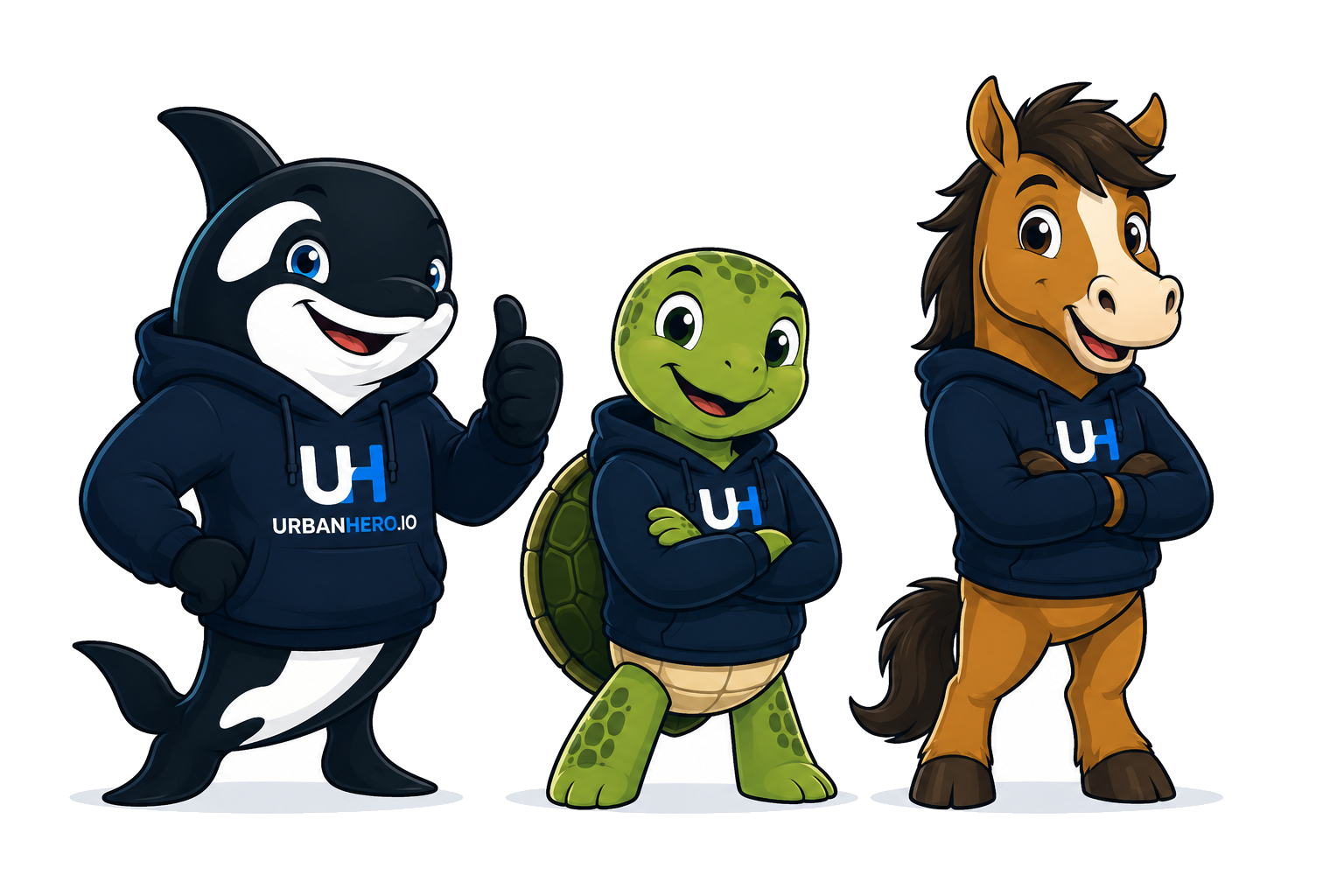
De coach zit midden in het ondermenu, in de gedaante van het maatje dat je koos: Urby, Shelly of Blaze. Je kunt om een hint vragen of een vraag stellen over de lesstof. De coach antwoordt op basis van wat er in je vak staat, en zegt het eerlijk als het antwoord daar niet in staat.
The coach sits in the middle of the bottom menu, as the buddy you picked: Urby, Shelly or Blaze. Ask for a hint or ask a question about your material. The coach answers based on what's in your subject, and says so honestly when the answer isn't in there.
Bewaart de coach wat er gevraagd wordt?Does the coach keep what's asked?
Alleen als de ouder dat goedvindt. Bij de start vraagt het maatje dat zelf, en je kiest het in Profiel → Instellingen → AI Coach. Standaard bewaren we hooguit een vraag waarop het antwoord níet in de lesstof stond, zodat je ziet wat er in het materiaal ontbreekt.
- Nooit het antwoord van de coach, nooit een gesprek.
- Na 90 dagen gaat het vanzelf weg.
- Met Wis wat er nu bewaard is haal je alles direct weg.
- Vanaf 12 jaar kan een profiel het bewaren ook zelf stopzetten, in het coach-venster. Weer aanzetten doet de ouder.
Only if the parent agrees. The buddy asks at the start, and you choose in Profile → Instellingen → AI Coach. By default we keep at most a question whose answer was not in the material, so you can see what's missing from it.
- Never the coach's answer, never a conversation.
- After 90 days it's removed automatically.
- "Wis wat er nu bewaard is" (clear what's stored now) removes everything straight away.
- From age 12, a profile can stop this itself in the coach window. Turning it back on is up to the parent.
Delen en vriendenSharing and friends
Kan ik een vak delen?Can I share a subject?
Ja, op twee manieren. Binnen je gezin, zodat de anderen kunnen meekijken; bewerken blijft bij jou. Of openbaar in de bibliotheek, zodat anderen op hetzelfde niveau het kunnen kopiëren. Je deelt dan de begrippen en vragen die UrbanHero maakte, niet je foto's of documenten.
Yes, in two ways. Within your family, so the others can view it; editing stays with you. Or publicly in the library, so others at the same level can copy it. You share the terms and questions UrbanHero made, not your photos or documents.
Wat is de bibliotheek, en wat betekent "nagekeken"?What is the library, and what does "reviewed" mean?
In de bibliotheek vind je kant-en-klare oefensets, te filteren op niveau en klas. Een kopie is van jou: je kunt hem aanpassen en ermee oefenen. Sets met het keurmerk nagekeken zijn door een vakdocent gecontroleerd.
The library has ready-made practice sets you can filter by level and year. A copy is yours: you can edit it and practise with it. Sets with the reviewed mark have been checked by a subject teacher.
Kan ik met vrienden oefenen?Can I practise with friends?
Ja. In Profiel → Instellingen → Vrienden staat je vriendcode. Deel de code of de link met een vriend die ook UrbanHero gebruikt. Een ouder keurt het verzoek goed; daarna kun je elkaar uitdagen.
Yes. Your friend code is in Profile → Instellingen → "Vrienden" (Friends). Share the code or link with a friend who also uses UrbanHero. A parent approves the request; after that you can challenge each other.
Privacy en gegevensPrivacy and data
Wat doen jullie met onze gegevens?What do you do with our data?
Geen advertenties en geen dataverkoop, nooit. Opslag van de gegevens in de EU (database en geüploade bestanden); de verwerking loopt via het netwerk van Cloudflare. De ouder beheert het gezinsaccount: welke profielen er zijn, wat er gedeeld wordt en wanneer iets wordt verwijderd. Een profiel ziet alleen de eigen voortgang. Meer lees je in de privacyverklaring.
No ads and no selling of data, ever. Data is stored in the EU (database and uploaded files); processing runs through Cloudflare's network. The parent manages the family account: which profiles exist, what's shared and when something is deleted. A profile only sees its own progress. More in the privacy statement (in Dutch).
Kan ik onze gegevens downloaden of verwijderen?Can I download or delete our data?
Ja, zelf, onder Profiel → Instellingen → Privacy & gegevens:
- per profiel: Gegevens downloaden of Profiel verwijderen (met alle vakken en voortgang);
- voor het hele gezin: Download mijn gegevens in één bestand, of Account definitief verwijderen.
Verwijderen is definitief. Je bevestigt het door de naam van het profiel of het woord VERWIJDER over te typen. Tip: download eerst je gegevens.
Yes, yourself, under Profile → Instellingen → "Privacy & gegevens" (Privacy & data):
- per profile: "Gegevens downloaden" (download data) or "Profiel verwijderen" (delete profile, with all subjects and progress);
- for the whole family: "Download mijn gegevens" in one file, or "Account definitief verwijderen" (delete account permanently).
Deleting is permanent. You confirm it by typing the profile's name or the word VERWIJDER. Tip: download your data first.
Kan ik mijn abonnement opzeggen?Can I cancel my subscription?
Ja. Een maandabonnement stopt aan het einde van de betaalde maand. Een jaarabonnement loopt af na twaalf maanden en wordt niet stilzwijgend verlengd. Je gegevens en voortgang blijven bewaard op het gratis plan.
Yes. A monthly plan stops at the end of the paid month. A yearly plan ends after twelve months and doesn't renew automatically. Your data and progress stay on the free plan.
Ik zie een fout in de app. Hoe meld ik dat?I found a bug. How do I report it?
Gebruik de knop Probleem melden in de app (in het ouderaccount). Beschrijf wat je deed en wat je verwachtte; een screenshot plakken mag. Je krijgt een bevestiging, en één mail zodra het is opgelost. Zie je de knop niet? Mail ons via info@dimensic.com.
Use the Report a problem button in the app (in the parent account). Describe what you did and what you expected; pasting a screenshot is fine. You'll get a confirmation, and one email once it's fixed. Don't see the button? Email us at info@dimensic.com.